How to: choose a smartphone

Need a phone? We’ll help you find the one that’s right for you
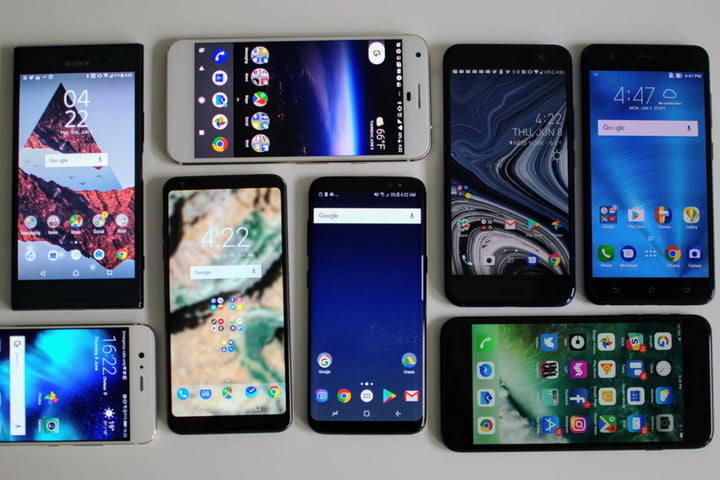
You need a smartphone, and you need it now. Maybe it’s your first phone, maybe your contract is up for renewal, or maybe you just dropped the last one in the toilet. Fear not. There are a lot of good options out there and we’ve got a quick guide about how to choose a cell phone that’s right for you.

For a more in-depth look at what the smartphone market has to offer, take a look at our friends from DigitalTrends who made guides for the best smartphonesbest Android phones, and best cheap smartphones.

FIGURE OUT WHAT YOUR NEEDS ARE

photo shootout p20 pro galaxy s9 iphone x pixel 2 pixel2 iphonex galaxys9 header

There are a lot of different things to consider when you’re buying a new smartphone. Do you need a phone with a large screen? Maybe you prefer something that you can use one-handed? Are you looking for long battery life or the best camera phone you can find? Do you need a lot of storage for your music collection? Maybe you’re a frequent traveler and a dual-SIM phone would be useful?

Start by drafting a list of the most important features for you and use it to compare devices to ensure your new smartphone ticks all of your boxes.

CHOOSE AN OPERATING SYSTEM

iOS 11 review

There are really only two smartphone operating systems worth considering today: Android and iOS.

Both are easy to use and support a wide variety of apps and games. While you can change from Android to iOS, or from iPhone to Android, there is a learning curve. You’ll be most instantly at home on whatever platform you’re used to.

Android offers a wider choice of devices at different prices, it offers more customization options, and Google’s excellent suite of services and apps is built in. If you already use things like Google Maps, Gmail, and Google Docs, then Android will be the better choice for you. It also features the best virtual assistant — Google Assistant — which is growing more useful all the time.

Apple’s iOS offers a more uniform, accessible experience, it’s more secure, and the App Store experience and quality of apps is slightly better. If you already have a MacBook or an iPad, then an iPhone is probably going to make the most sense for you. You’ll also find an enormous choice of accessories for iPhones, something that can be limited for lesser-known Android devices.

For a more in-depth breakdown of the top two smartphone platforms check out our guide to Android vs. iOS, where we put them head-to-head in various categories.

FEATURES YOU’LL WANT IN YOUR PHONE

Picking the right phone for you can be tough, and you can’t trust most employees at stores to know what they’re talking about or to steer you in the right direction. We recommend that you shop around and get a hands-on with the smartphone you fancy before buying. If you don’t know much about specs, try to bring along a knowledgeable friend if you have one, but if not, here are a few things you’ll want to think about.

Design

If you want something you can use one-handed, then pick it up and try it out. A lot of phones nowadays are glass front and back, but that makes them fragile and prone to smudges, so they won’t suit everyone. Check that the fingerprint sensor position suits you as well — they’re generally being moved from the front to the back. The right design for you should look and feel good.

Nice screen

You’re going to spend many hours gazing at it, so make sure that your smartphone screen is a good size for you and that it boasts a high resolution. We recommend a minimum of Full HD, which will be 1920 x 1080 pixels, or perhaps 2160 x 1080 pixels if the phone has a modern 18:9 aspect ratio. Anything that’s 1080p or higher will be sharp enough. In terms of the underlying technology, OLED screens have better contrast, with deeper blacks than LCD screens, and we prefer them overall. Both Samsung’s Galaxy range and Apple’s iPhone X sport OLED screens, but you won’t find them at the budget end of the market.

Good performance

This will mainly be determined by two things: The processor and the RAM. The processor is the most important thing, and newer is generally better in terms of both speed and power efficiency. Apple’s A series chipset tends to outperform the competition. For an Android phone, Qualcomm’s Snapdragon 845 is currently the cream of the crop. It’s debatable how much RAM you need in a smartphone, but we recommend looking for at least 4GB. This doesn’t apply to iPhones, however, because they deal with memory management differently and don’t require as much RAM. If in doubt, read reviews or play with your prospective smartphone in a store to test it.

Up-to-date OS

If you buy a new iPhone, then you’ll get the latest version of iOS on it, but this isn’t always the case with Android phones. Because the manufacturers often apply their own user interfaces on top of Android, it can take a while to get the latest updates, and you may not get future versions of Android upon their release — or maybe not at all, if the manufacturer decides not to update. Only stock Android phones from Google, such as the Pixel 2, are guaranteed to get immediate and consistent Android updates. The current version to look for is Android 8.0 Oreo, but Android P is just around the corner. Always try to get the latest version you can.

huawei p20 pro security scaremongering pointing camera opinion

A good camera

Smartphone cameras have come on in leaps and bounds over the last few years. The choice can be bewildering, but it’s important to note that good camera performance is about a lot more than just a high megapixel count.

Bloatware

Be careful of bloatware or hobbled features, especially if you’re buying Android. Sometimes carriers block specific features or change defaults. Carriers and manufacturers also often add a lot of apps that are superfluous, and you may find that you can’t uninstall them.

Battery life

Removable batteries are rare nowadays, so you want to pick a phone that will be able to keep up with you. Check the consensus on battery life in reviews. The mAh rating will give you some indication, but the capacity is also impacted by the screen size, resolution, and software, so you need to look beyond the number.

Storage

The latest smartphones generally come with enough storage built in. When 16GB phones were common — and they had 10GB used up out of the box — you could run out of space alarmingly quickly. We recommend a minimum of 32GB, but 64GB is better. Much depends on how you use your phone. You’ll obviously need more space if you like to load your MP3 collection on there. Having a MicroSD card slot allows you to expand your storage space relatively cheaply, but Apple never includes MicroSD card slots, so this is something you’ll only find in some Android devices.

Durability

We mentioned the dangers of glass phones briefly, but if you buy a glass phone and you’re prone to dropping it, make sure you get a protective case. You should also get a phone with some water resistance. The top flagships tend to have IP67 or IP68 ratings nowadays, which means they can be submerged in water without damage. Even budget phones often come with some water resistance, but it’s worth checking.

CHOOSE A WIRELESS CARRIER

att to end two year contracts january 2016 sign phone company carrier

It’s important to choose a carrier that offers good coverage in your area so you’ll have a strong signal. We recommend doing a little research at Open Signal where you’ll find comprehensive coverage maps for different areas and carriers. Simply enter your location and pick a carrier to see what the coverage is like where you live and work. If you want to be able to do data intensive things — like stream video or play multiplayer games — without Wi-Fi, then make sure that 4G coverage is good in your area.

The four main choices are Verizon, AT&T, T-Mobile, and Sprint, but there are other carriers such as MetroPCS, Boost, Cricket, and Virgin that may be worth considering. If you plan to buy your smartphone from your carrier, along with your service, then you should also check that they offer a phone you want. We recommend buying an unlocked phone when possible because it will work out cheaper in the long run and give you the freedom to change carrier in future.

Assuming there isn’t much difference in coverage quality for your area, and you can get the phone you want on multiple carriers, you may want to refer to our next section before making a decision.

PICK A SERVICE PLAN

t mobile q4 2014 report subscriber growth john legere  un carrier event

Carriers will always try to sell you expensive plans, so it’s worth considering what you actually need. If you tend to be on Wi-Fi a lot, then you probably don’t need a lot of data. Minutes and texts tend to be very cheap, so it’s usually the amount of data that determines the monthly cost.

Once you have an idea of the data, minutes, and texts you need, try using a comparison service like Wirefly to find the best deal quickly. It’s worth considering that the more products and services you take from a single carrier, the more of a discount you can expect, though you may have to ask for it.

There are a lot of different service plans out there, but competition is usually good for consumers — you just have to shop around for the best deal.

It’s also a good idea to try and negotiate a better deal every once in a while. If you find a better plan for the same money somewhere else, but you don’t really want to leave your current carrier, then call them up and ask them about it. You want to get put through to the retention department, as they often have the power to offer you discounts and other incentives to stay, but it’s important to stick to your guns and be prepared to leave if they won’t match or beat the deal you’ve found.

We hope these tips will help you get the right smartphone for you. Hit the comments if you have a question and we’ll do our best to answer it.
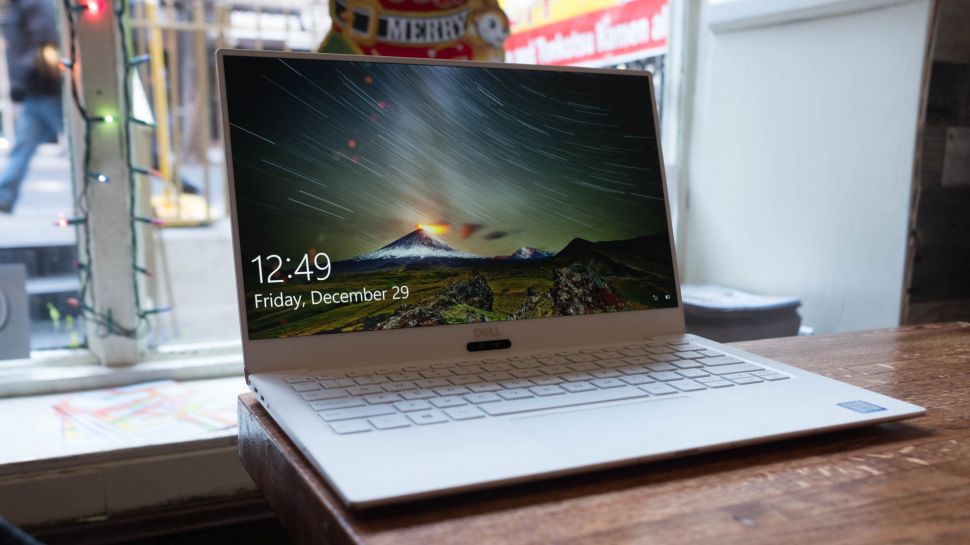
How to: Extend your laptop’s battery life

Handy laptop battery life tips

Modern laptops are more powerful than ever before, and thanks to advancements in mobile technology, they are also more efficient as well, giving them ever greater battery lives.

However, they still need to be plugged in a juiced up throughout the day.  While laptop battery life is a chief cause of mobile moans, it’s possible to get significant improvements by good practice and a few software tweaks. To help you get a longer laptop battery life, here are 10 easy ways to improve it. 

1. Dim your screen

The screen is one of the most power-hungry parts of the laptop. It takes serious amounts of battery power to keep your display looking clear and bright. Saving this power is simply a question of turning the brightness down. 

The screen brightness button is usually located as a second function of one of the F keys, and is represented by a little sun symbol with up and down icons. To use it, just hold down the correct function key and then choose up or down.

2. Change power settings

Windows 10 comes with some great power features, which enable you to eke out the best performance when you’re plugged into the mains, and optimise battery life when on the move. 

Type ‘power options’ into the Start Search box and choose ‘Power saver’ from the list. Windows 10 also has more methods for saving battery life. These include settings for powering off the monitor and kicking into sleep mode more quickly.

3. Switch off Wi-Fi

One of the biggest battery sappers is the wireless networking capabilities built into most laptops. Wi-Fi drains the battery by constantly drawing power from the battery and, when not connected, looking for networks. 

When you’re using your laptop away from the grid, the likelihood is you’re away from wireless networks, so you can turn this device off. Many laptops have a function button that enables you to turn off the wireless adaptor manually to save yourself the unnecessary waste, but older laptops often don’t have this.

If this is the case, open up the Notification Center by clicking the speech bubble icon on the far-right side of the taskbar, and click on ‘Wi-Fi’ to turn it off.

4. Turn off peripherals

Using USB peripherals can put a drain on your system, because your motherboard has to power them, so unplugging everything saves juice. USB sticks, mice and webcams are common offenders, so copy all your information across and eject your devices as soon as possible, and put up with laptop track pads over your USB mouse.

Many laptops have function buttons to turn off the built-in webcam, which drains the battery if given the chance. And switch your speakers to mute if you’ve no need for sound – your laptop beeping every time it gets an email or boots Windows can be a drain.

5. Eject your disc drives

Having a disc spinning in the drive is a huge drain on resources, and many programs constantly do this. Simply eject your discs before you switch to battery power to gain vital extra minutes from your working day.

Most modern laptops don’t come with disc drives installed these days, but if yours does, it’s worth making sure it’s empty when you’re on the move.

6. Invest in some hardware

Good practice can go some way to extending your battery life, but if you need to use your laptop throughout your working day, you’re going to need some help. Advertisement

Most laptops come with a six-cell battery, but many manufacturers offer eight- or even 12-cell optional upgrades, which can double your power. 

The alternative to expensive laptop batteries are portable laptop battery chargers, which give you valuable extra hours for all your devices. These are usually compact battery units that have adapters for most laptops and mobile phones, which is portable enough to be placed in a bag and has enough capacity to double the length of your charge.

Check out our list of the best portable laptop battery chargers and power banks for our pick of the best devices to keep your laptop charged.

7. Disable features

Windows 10 has some handy built-in features, but many put demands on your system that are unnecessary when working on the move. Take the simple measure of turning off graphical effects when you’re on the move to make your laptop more efficient.

8. Battery care

Lithium-Ion batteries don’t need a complete discharge (contrary to popular belief) but also you should use a battery once you’ve charged it. 

If you have a spare you keep topped up, use that instead of your main regularly. If you have an older non-Lithium-Ion battery, you’ll need to regularly discharge it.

How to: Connect your laptop to your TV

Get your media up on the big screen

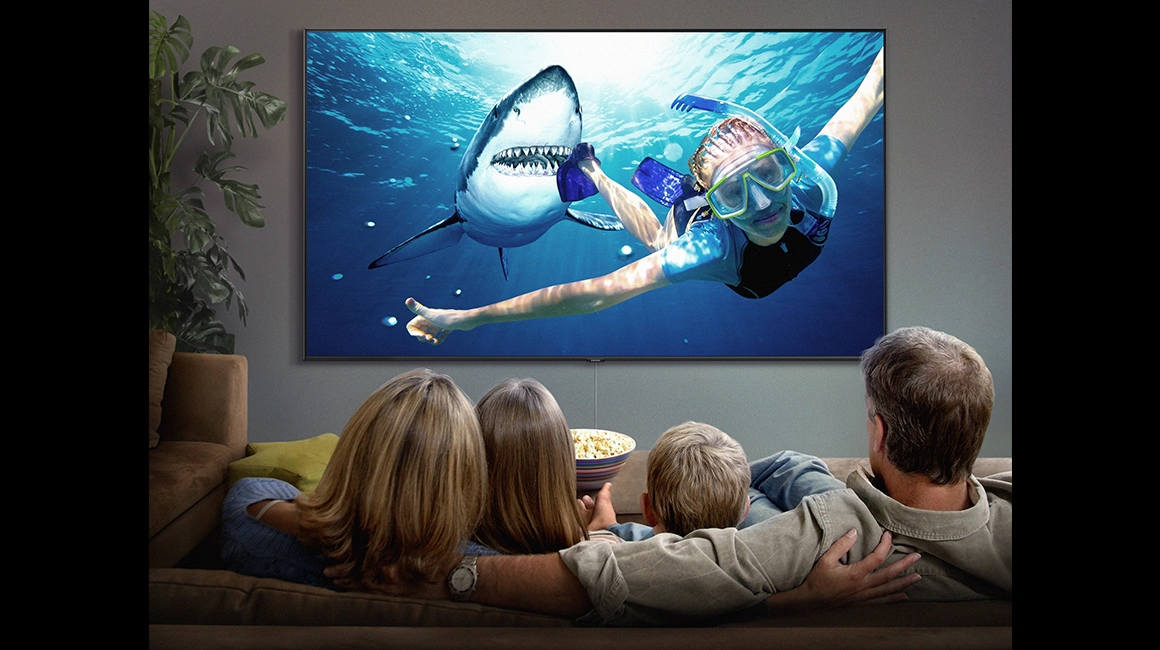
Have a great family time!

If you haven’t invested in a smart TV or streaming box, you can still watch all your favorite shows and videos from Netflix, Amazon Prime Video, YouTube, and more by connecting your laptop to your TV.

Maybe you want to show your friends the funny video that had you howling last night, or maybe you want to stream a soccer game – but why sit there hunched around your laptop or smartphone when you can easily connect it to your TV wirelessly or with cables?

We’ve got all the instructions and tips you need to successfully hook up one device to the other. Read our guide to discover everything you need to know about connecting your portable computer, phone or tablet to your TV.

How do I connect my mobile or laptop to a TV wirelessly?

If you hate the look (and hassle) of trailing cables, it’s easier and cheaper than ever to connect to your TV wirelessly. For example, if your flat-screen TV is a smart model with support for DLNA media streaming, then you can send movies, photos and other media files directly to it without the need for any additional hardware – just locate the right app on your TV to receive the content.

You’ll then need a suitable app for your laptop or mobile that allows you to send or stream content using DLNA. There are simple, relatively unsophisticated solutions such as AllCast for iOS and Android – this lets you display locally stored media as well as media hosted on another local DLNA server, or in the cloud via supported services (including Dropbox, Google Drive and Instagram).

If you’re serious about streaming media, then it’s worth considering using a full-blown media server solution like Kodi. As an open-source player that offers basic media server capabilities and works on everything except non-jailbroken iOS devices, Kodi is compatible with almost every streaming service imaginable.

You can also use a VPN, or virtual private network, to encrypt your connection and stream content from literally anywhere in the world. ExpressVPN, for instance, offers dedicated Mac, PC, and Linux apps and includes more than 140 different VPN locations.  

Alternatively, take a look at either Plex or Emby. While Kodi bolts on basic server features to its fancy looking front end, these put the media server front and center. Install the desktop server component to stream content from your laptop, or purchase the appropriate mobile app if you want to use it with your phone or tablet.

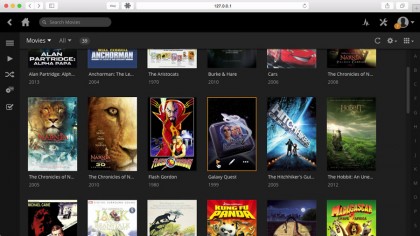
Organize your media into libraries for accessing through your smart TV’s DLNA media app

What wireless device can I plug into my TV to stream media and mirror my display?

You don’t need a smart TV model to mirror your device’s display on your TV – you just need to purchase a smart box. There are two main choices here, both of which plug into your TV via a spare HDMI port.

Firstly, if you’re exclusively wedded to the Apple ecosystem, then the Apple TV 4Kallows you to stream media as well as mirror your MacBook or iOS mobile’s display on the big screen.

Alternatively, Google’s Chromecast is cheaper, and works across a wider range of devices – Windows, Linux and Android, as well as Mac and iOS. You can stream media from your mobile using a range of supported apps, and you’ll be pleased to learn that both Emby and Plex are supported.

Chromecast works on laptops via the Chrome web browser and Google Castadd-in. Once installed, click the Cast button to the right of the address bar (or choose Cast from the menu) to pick what to cast and where to cast it.

By default, the contents of the current tab will be sent to your TV, so if you’re looking to stream media you can do so by accessing your server’s web-based UI through this tab – it’s 127.0.0.1:32400/web/ in the case of Plex for example. Any media you subsequently play back on this tab will then appear on your TV.

Click the down button to the right of ‘Cast this tab to…’ and you’ll see two further options: ‘Cast this tab (optimise for audio)’ is for playing music through your TV, while ‘Cast screen/window (experimental)’ is there should you wish to mirror all or part of your laptop’s display. Once selected, you can choose to display a selected application window or your entire desktop on your TV.

What do I need to physically connect my laptop to my flat-screen TV?

Maybe you don’t have a problem with cables – if so, all flat-screen TVs offer at least one HDMI port, as do practically all non-Apple laptops that have been manufactured in the last eight years. HDMI is just about the best solution at the moment, as it supports both audio and video (HD and beyond). All you need, therefore, is an HDMI cable to connect the two.

You could spend a small fortune on expensive HDMI cables, but the truth of the matter is that for HD video transmitted from your laptop, any HDMI cable will do. You can buy perfectly functioning, gold-plated cables for under £5 (and as little as £2) from the likes of ScrewfixAmazon, or many others.

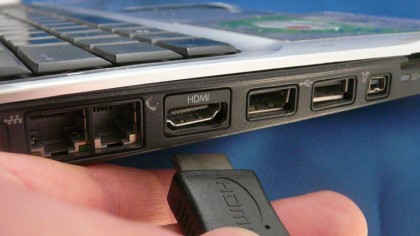
The simplest and best way of physically connecting your laptop to your TV is via HDMI

How do I connect my MacBook to my flat-screen TV?

The latest MacBook models require a USB Type-C adapter to connect them to your TV. Apple provides a Digital AV Multiport Adapter, but if you want a simple USB-C to HDMI connection at HD quality, you can get away with a more affordable Anker USB-C to HDMI Adapter.

MacBook Airs and MacBook Pros ship with Thunderbolt ports that double up as Mini DisplayPorts – this allows you to skip right past the adapter to simply having a USB-C to DisplayPort cable. Just make sure it supports 4K resolutions like the Cable Matters USB-C to DisplayPort.

You’ll need the right adapter or cable in order to hook up the latest MacBooks to your big-screen TV

What cables do I need for connecting older laptops to TVs?

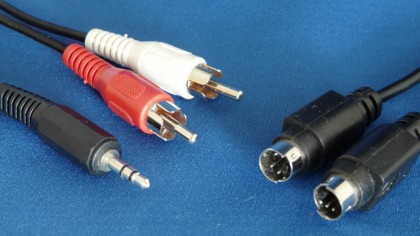
If you’re not worried about streaming in HD – when connecting up to an older CRT television, for example – then the best option is to use the S-Video port. It doesn’t provide High Definition (HD) quality, and only carries the video signal, so you’ll also need to hook up a separate audio cable (typically from your laptop’s 3.5mm headphone jack) to the audio inputs on your TV.

Your TV will need one of two things: either separate S-Video and phono audio ports, usually found on the front of the TV, or a SCART socket found on the back. You’ll then need to purchase an S-Video cable of suitable length, along with a separate audio cable. If necessary, purchase a SCART adapter to connect both sets of cables to your TV.

You’ll need separate cables for audio and video if connecting via analogue ports

What’s the alternative to S-Video?

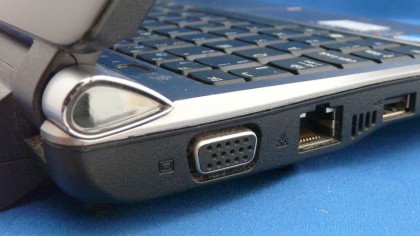
As analogue technologies become depreciated, modern laptops increasingly ship without an available S-Video port. If this is the case, you’ll need to use the laptop’s VGA port instead. This is a practical solution if your flat-screen TV has a VGA port included – a standard VGA cable coupled with an audio cable (see above) will be sufficient. You may even be able to view HD content this way.

If you’re trying to hook up to an older analogue TV, however, then it becomes less feasible. You’ll need an expensive VGA to TV Converter box that costs almost as much as a budget HD Ready 19-inch TV with the required VGA port built into it.

Older laptops should offer at least one analogue video option – usually S-Video or VGA

How do I connect my laptop to my TV?

Connecting your laptop to your TV with the right cable is often only half the battle. You also need to switch your TV to the correct input, plus configure your laptop or MacBook to re-route its display through the TV. This may happen automatically, but if it doesn’t – or you want to configure the display differently – read on.

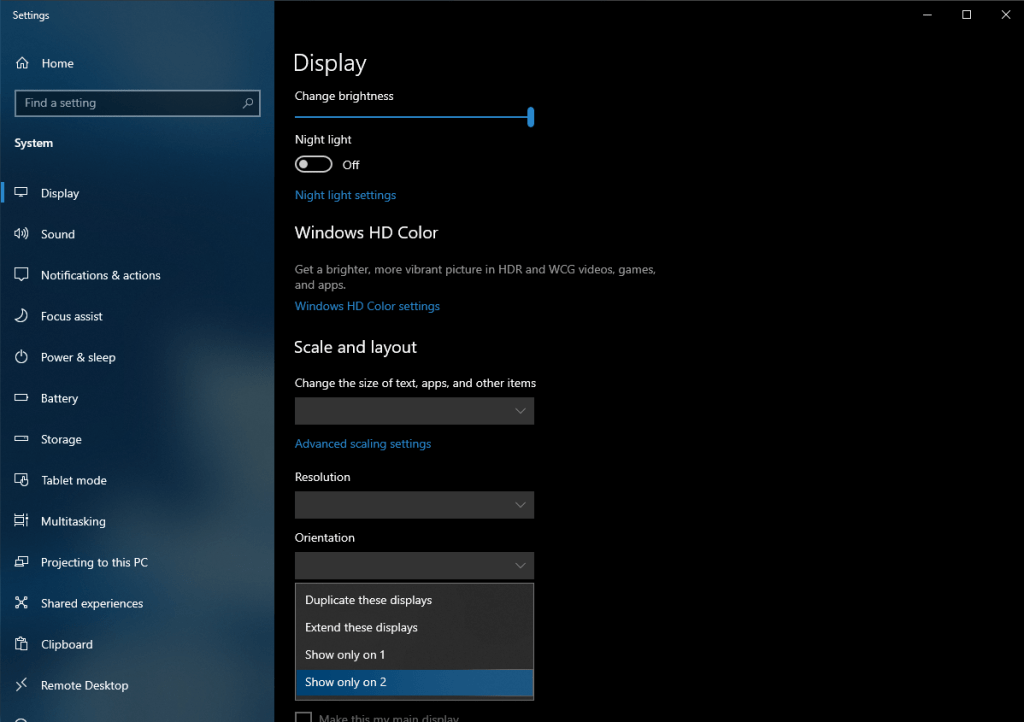
PC laptop users should be able to cycle through the available display options using a special function key in conjunction with the [Fn] button. Keep pressing this to cycle between laptop display only, TV only, and laptop and TV together. Alternatively, right-click the desktop in Windows to select screen resolution; from here you’ll be able to manually detect and select your TV’s display.

Determine what’s shown on your TV screen using Windows’ Display Settings

Mac users can configure the display via System Preferences: select Displays followed by the Arrangement tab (click Detect Displays if it’s not present). Tick Mirror Displays to put your TV perfectly in sync with your MacBook’s display, as opposed to acting as an extension of it.